Everything you need to get started with OBS Studio – guides, tutorials, and answers to common questions.
Get up and running with OBS Studio in just a few simple steps.
Download OBS Studio for your operating system from our download page. The installer includes everything you need to start streaming and recording.
When you first launch OBS, the auto-configuration wizard will help you set up optimal settings based on your hardware and internet connection.
Add your sources (camera, screen, game capture), configure your scenes, and you're ready to stream or record your first video!
Master the key features of OBS Studio with our comprehensive guides.
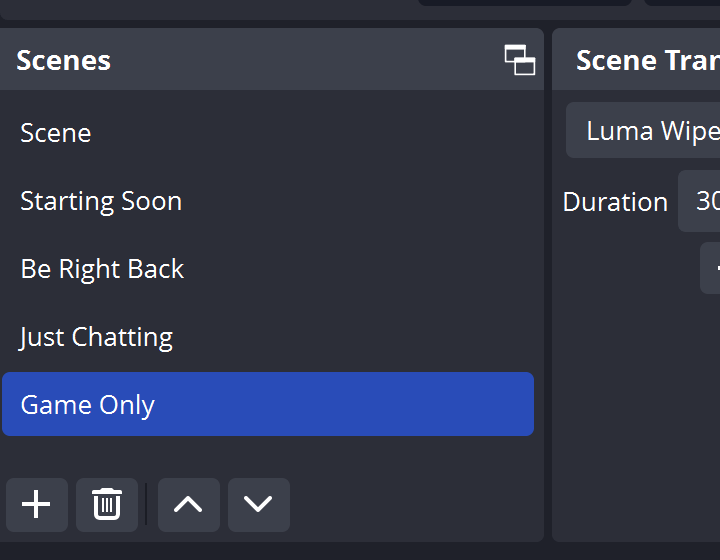
Learn how to create professional-looking scenes with multiple sources. Combine webcams, screen captures, images, and more to create engaging content.
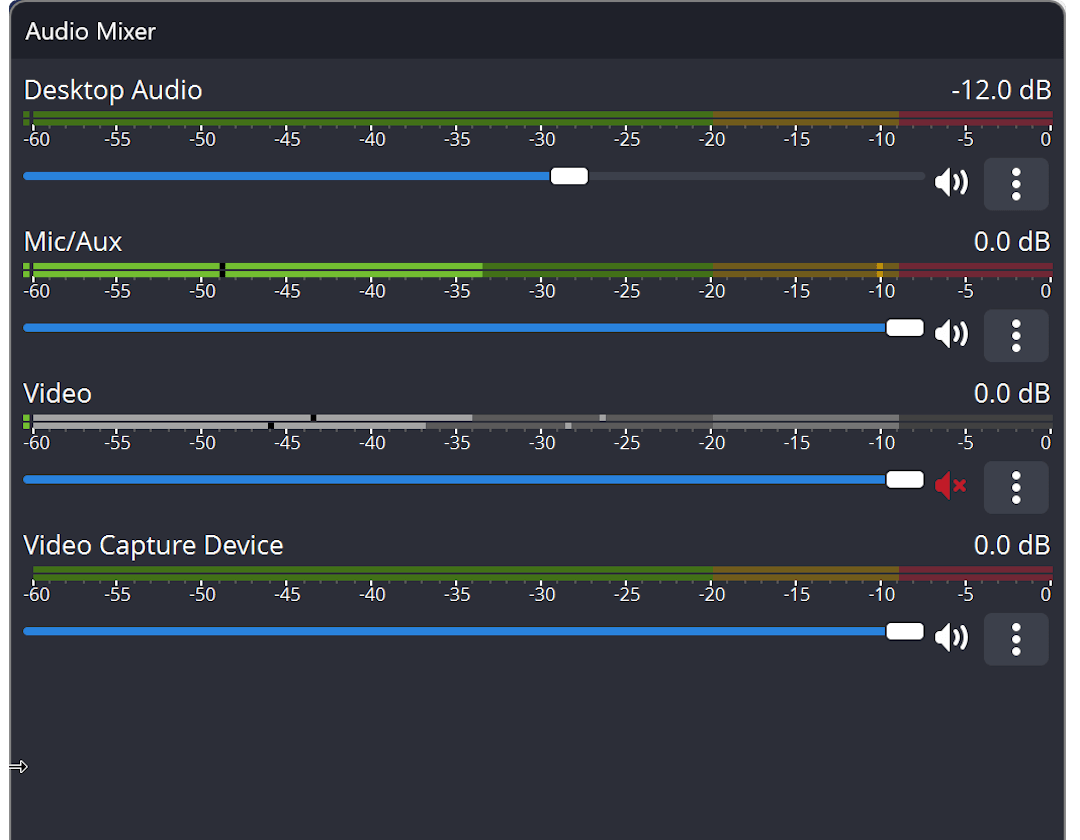
Set up perfect audio for your streams and recordings. Learn to use filters, manage multiple audio sources, and achieve professional sound quality.
Quick answers to the most common questions about OBS Studio.
Windows: Windows 10 or Windows 11, DirectX 10.1 compatible GPU, 4GB RAM minimum (8GB recommended).
macOS: macOS 12.0 (Monterey) or newer, Intel or Apple Silicon processor, 4GB RAM minimum.
For streaming at higher resolutions or frame rates, we recommend a modern multi-core CPU and a dedicated graphics card.
Yes! OBS Studio is completely free and open source software. There are no paid features, watermarks, or time limits. It's licensed under the GPL, meaning anyone can use, modify, and distribute it freely.
OBS Studio supports streaming to virtually any platform that accepts RTMP or SRT streams, including:
To capture games in OBS Studio:
Frame drops can be caused by several factors:
Check View → Stats in OBS to diagnose which type of frame drops you're experiencing.
Absolutely! OBS Studio allows you to stream and record simultaneously. You can even configure different settings for each:
Adding a webcam with an overlay is easy:
Quick fixes for the most common problems users encounter.
If you see a black screen when trying to capture a game:
If your audio isn't being captured or played back:
If OBS is using too much CPU:
If your stream frequently disconnects:
More ways to learn and get help with OBS Studio.